Freelance time tracking that turns hours into invoices, automatically.
Track time on the work, not just the clock. Most time trackers tell you how many hours you worked. Aeto tells you how many hours you worked, on which projects, and turns that into an invoice.
30-day free trialNo credit card requiredMac · Web · Chrome
Tracking hours is useless if you can't bill from them.
You've spent time in a timer app that logs "Tuesday: 6.5 hours." Great. Now, try to invoice from that. Which client? Which project? What was the work? Most time trackers create a data problem you have to solve manually at billing time. Aeto solves it at the source.
Task-level tracking.
Every timer in Aeto is started on a specific task, inside a specific project, for a specific client. When you stop the timer, that time slip is logged with full context and is ready to be invoiced without any additional work.
Four ways to track time.
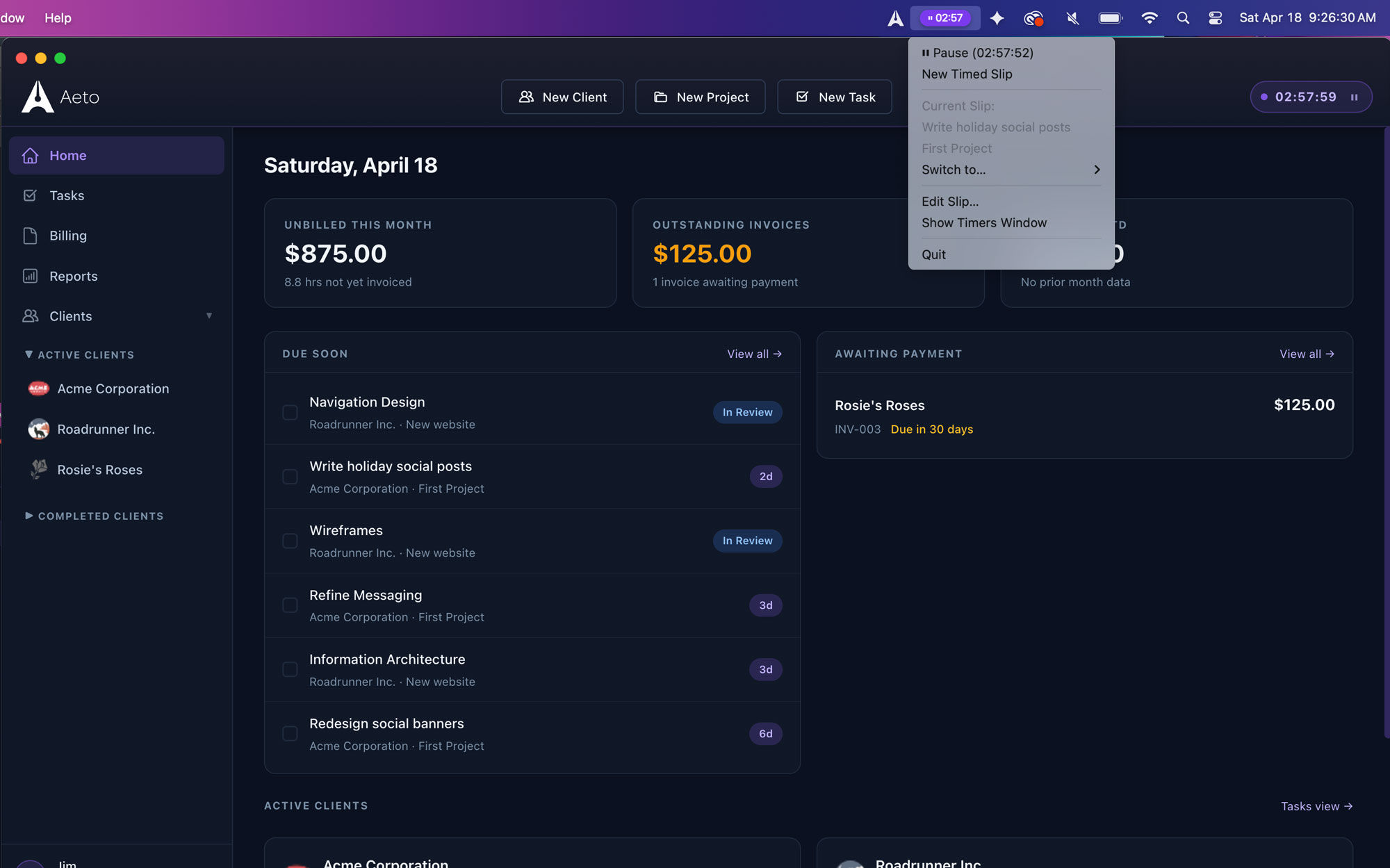
Start a timer from inside the app, the web browser, the Chrome Extension in your browser toolbar, or the macOS menu bar timer. Every method logs to the same task with the same accuracy — and all of it flows into your next invoice.
Manual time entry.
Forgot to start the timer? Add time manually with a start time, end time, and task. Aeto treats manual entries the same as timer entries: they flow into invoices identically.
Time slips view.
Every time entry lives in the time slips log, sortable by client, project, date, or task. Review what you've logged before sending an invoice and catch anything that needs adjusting.
When you're ready to bill, the work is already done.
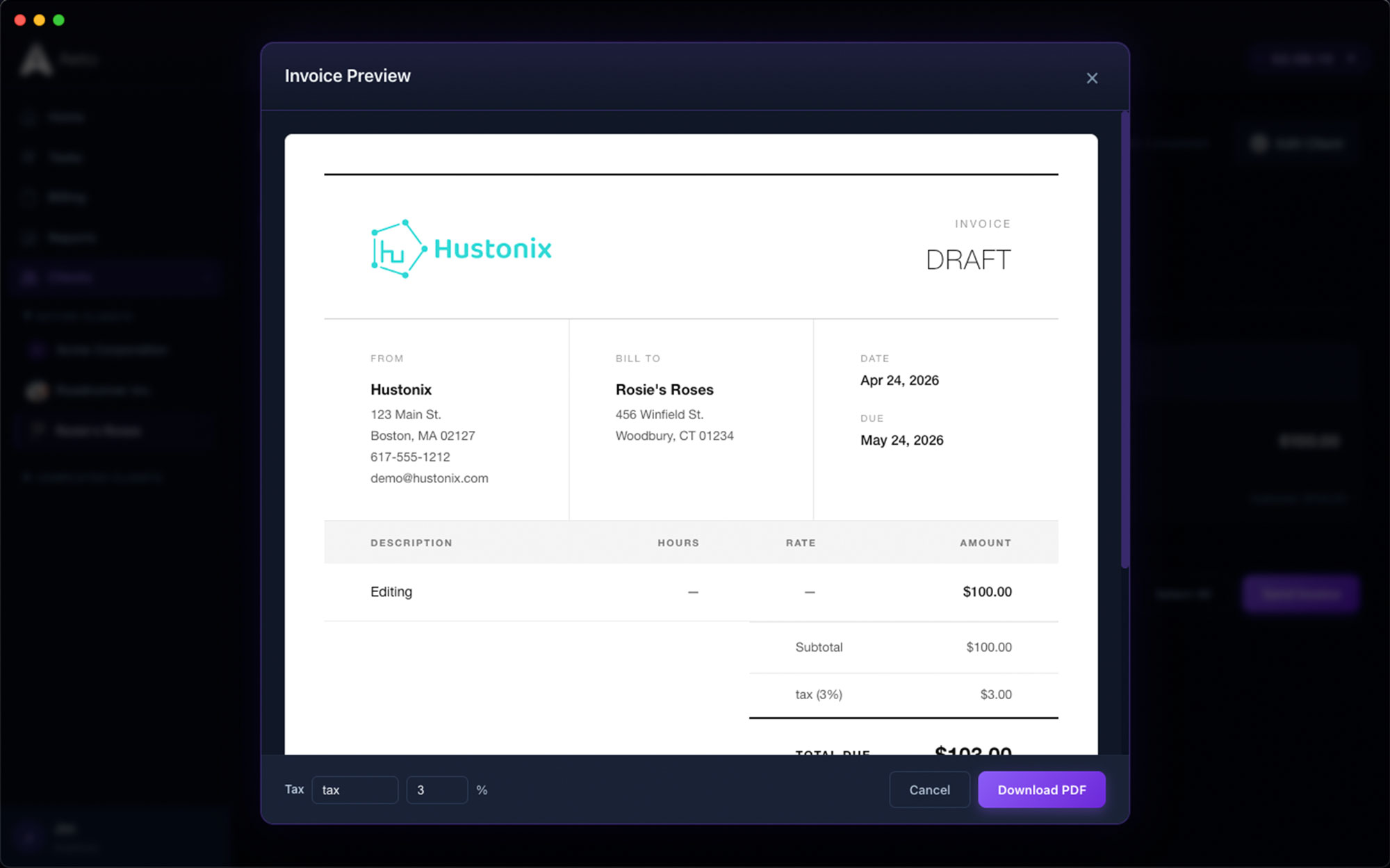
When you're ready to bill a client, Aeto pulls every unbilled time slip into an invoice draft. No copy-paste, no spreadsheet, no calculator. Review, adjust if needed, and send. Aeto is for independent professionals who do the work and send the invoice — without a team, a finance department, or a second app.
Hourly, Flat-Fee, and Unbilled Projects.
For hourly projects, tracked time drives the invoice directly. For flat-fee projects, Aeto still tracks internal hours so you can see your effective rate and quote smarter next time.
Hourly
Bill exactly what you tracked.
Every logged minute becomes a line item at your hourly rate. No math, no estimation. The invoice reflects exactly what happened.
Flat-fee
Track hours even when you don't bill them.
Fixed-price projects still log time internally. Aeto shows your effective hourly rate so you can see whether the project was profitable and price the next one more accurately.
Unbilled
Track work that isn't tied to an invoice.
Admin, pitches, internal projects. Track the time, skip the invoice. Unbilled projects give you a complete picture of where your hours actually go.
Questions about time tracking in Aeto.
Q.01How does Aeto track time differently from other apps?
Most time trackers log hours without context — you get 'Tuesday: 6.5 hours' and then have to figure out what that means at billing time. Aeto tracks time at the task level: every timer is attached to a specific task, project, and client. When you're ready to invoice, the work is already categorized.
Q.02Does Aeto have a menu bar timer for Mac?
Yes. The Mac desktop app includes a persistent menu bar timer that's always one click away. Start tracking against any task from any other app — no switching to Aeto required. The timer keeps running while you work in anything else.
Q.03Can I add time manually if I forget to start a timer?
Yes. You can add time manually with a start time, end time, and task. Aeto treats manual entries the same as timer entries — they flow into invoices identically.
Q.04Does time tracking in Aeto work for flat-fee projects?
Yes. For flat-fee projects, Aeto tracks your internal hours even though you're billing a fixed amount. This lets you see your effective hourly rate and quote similar projects more accurately in the future.
Q.05Can I track time across multiple clients at once?
You can work across unlimited clients and projects, but only one timer runs at a time. Starting a new timer stops the previous one automatically.
Q.06Can I see all my time entries in one place?
Yes. The time slips log shows every entry, sortable by client, project, date, or task. Review what you've logged before sending an invoice and catch anything that needs adjusting.
Q.07How does tracked time turn into an invoice?
Select a client and billing period, and Aeto pulls every unbilled time slip into an invoice draft automatically. Line items are already there — client, project, task, hours, and rate. Review, adjust if needed, and send.
Q.08Can I run two timers at once?
No. The timer runs on the task you're actually working on. Starting a new timer automatically stops the previous one.
Your work is done.
Make sure you're paid for all of it.
Download Aeto free. Your first 30 days are on us. No card, no commitment — just the end of the unbilled hour.